
ButterflyNetRender

ButterflyNetRender™ (BNR) is a popular network rendering controller for Lightwave

...

A New Chapter Begins

Sept 1, 2025

Since 2002, I’ve had the privilege of developing and selling ButterflyNetRender, a tool that supported artists, studios, and developers around the world in managing network rendering pipelines. It’s been an amazing journey—what began as a side project became a trusted solution used in professional production environments.

I am officially announcing that ButterflyNetRender 7.5 will be retired on Jan 1, 2026. However, for current customers, I plan to release a new updated LightWave version, ButterflyNetRender 8, to extend the software’s usability and provide compatibility with evolving workflows. Additional updates may be considered.

ButterflyNetRender 8

Thank you for being part of the Journey

While ButterflyNetRender will no longer receive updates, re-registration will still be available for existing users. I will also continue to honor and support any outstanding contracts to ensure a smooth transition for current clients. Additionally, for those still actively running ButterflyNetRender, I am available for consulting to build a personalized version with minor changes to meet your needs—contact me with your request, and I can provide a quote.

Whether you're looking to improve your team's development process, need an experienced hand to guide your project planning, or are interested in the legacy of ButterflyNetRender, I'm here to help.

Contact
"With over 30 years of software development experience, I help teams succeed by bringing clarity, structure, and momentum to their projects through effective SCRUM planning. Whether you're launching a new product, scaling a development team, or refining your agile process, I offer practical, real-world insights that go beyond theory."
...

BNR - PDF tutorials

Build shared folders

How to create a Network Sharing directory for setting up your render farm

setupShared.pdf

Setup Controller

Configure the BNRStart application – used to launch the BNR5 Controller and WebUI

setupController.pdf

Configure Platforms

Configure the Platforms – Includes how to setup the Lightwave with Platform wizard.

SetupPlatforms.pdf

User Guide

The User Guide.

Setup BNR

BNR Video

BNR - Setup ButterflyNetRender - BNR Start.

Setup BNR

BNR - Video tutorials

BNR Video

BNR - Setup ButterflyNetRender - BNR Start.

Setup BNR

BNR - FAQ

This is a issue with BNR reading the Lightwave settings in a lws scene file (where a animation plugin is missing a tag). You will need to update to a newer version of BNR to resolve this.

On Windows 7 it seems a message box might get hidden by the main window:

You may need to ‘alt-tab’ to see if a message window is hidden behind the main window
(As this might make the program look like its frozen, but in fact its just waiting for a click on a message window)

for questions - email us directly at no charge* *(email support is no charge for the first 12 months after your purchase, which includes 12 months of minor software updates).

Please try this settings in your firewall:

5950-6100 – BNR Client connect sockets
6516-6546 – Remote Sockets for viewers
7880-7900 – BNR Client command sockets

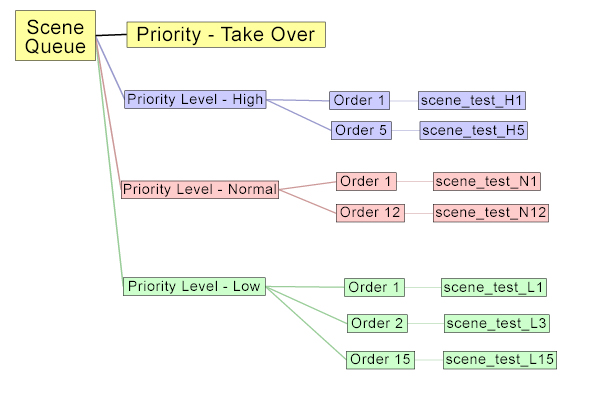
There are 2 factors that control the Priority
1. Priority Level = Low, Normal, High, Take Over
2. Priority Order = 1-32757

A Scene with ‘Level: High’ will run before a Scene with ‘Level: Normal’
A Scene with ‘Level: Normal’ will run before a Scene with ‘Level: Low’
A Scene with ‘Level: Take Over’ is a special level -that can be used to Take over all the rendernodes – for emergency jobs.

Now inside each ‘Priority Level’ the scenes will run in the ‘Priority Order’ So: A Scene with ‘Level: Normal’ and ‘Order: 1’ will run before ‘Level: Normal’ and ‘Order: 2’

The FIFO setting in Options->Configure Priority is used to set the increase the Priority Order each time you add a scene to the queue. (FIFO – First in First out)

Please see Tree View below for a visual map of how this works:

Priority Flow.


On windows BNR stores the configuration settings in cfg files located here:

Win2000/XP machine:
C:\Documents and Settings\All Users\Application Data\ButterflyNetRender\

Vista/Windows 7,8,10:
C:\ProgramData\ButterflyNetRender\

When you enable the Logging. The LWSN (LightWave renderer) output is captured to a file. Please check the ‘load…’ and ‘render…’ logs to check for any Lightwave rendering issues.

Check the Log Tab to find text log files:

launch*.txt = command to start rendering
load*.txt = log of loading the scene
render*.txt = log of rendering the scene

Check each log file for any error messages to figure out what might be wrong.

It might be a missing plugin or object file.

Make sure you are only using 1 thread during rendering. In the BNR Config Lightwave settings (Configure Platforms->LightWave tab) set the Render Threads to 1.
You need to set the output format to fit your frame range – use name0001.xxx
I’m using the LWSN -2 option to give BNR more control over the render nodes. And this also gives me the ability to not have to reload the Scenes each time it renders a frame(s). However if you want to use the LWSN -3 (Batch mode) option – this is also available.
No, BNR will set this up for you with the Automatic setup feature. All you have to do is install BNR on the same machine that you have Lightwave installed on and you must have a shared network directory that all your machines can access, BNR will do the rest!. You will need to make sure the LightWave cfg files are created by Launching Lightwave Layout and ‘Clear’ and ‘Rescan’ the plugins, then exiting Layout.
Yes it could, but, you could configure the rendernodes to use all CPU’s or a single CPU/Core in a multiprocessor system. So you are not locked into using a rendernode per CPU/Core – you can configure them depending on the type or render system you will be using.

The Controller and Client communicate via TCP/IP.

ButterflyNetRender 4.x:
Socket Ports 5600-5699, 6600-6625, 7600-7615.

ButterflyNetRender 5.x, 6.x, 7.x :
5950-6100 – BNR Client connect sockets
6516-6546 – Remote Sockets for viewers
7880-7900 – BNR Client command sockets

Make sure your firewall (if enabled) has these ports open so the applications can talk with each other.

In the BNR Controller – Select the Options->Controller Information.
Yes, Just install the client after you install the controller and configure it with this machines IP address.

Please confirm you are not running a Firewall on the Controller machine or Client machines.

ButterflyNetRender 4.x:
Socket Ports 5600-5699, 6600-6625, 7600-7615.

ButterflyNetRender 5.x, 6.x, 7.x :
5950-6100 – BNR Client connect sockets
6516-6546 – Remote Sockets for viewers
7880-7900 – BNR Client command sockets

If you want to run a Firewall on these machines – Please open these ports for Local TCPIP traffic